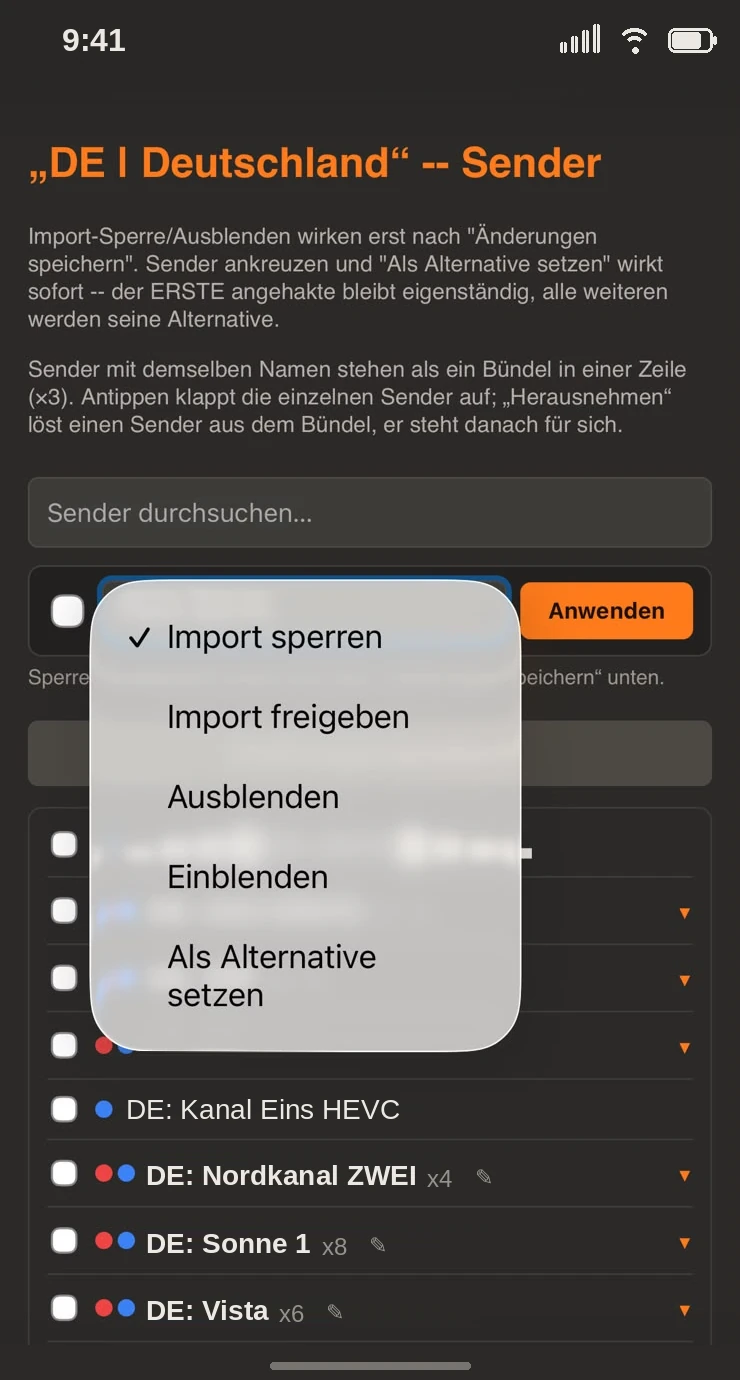
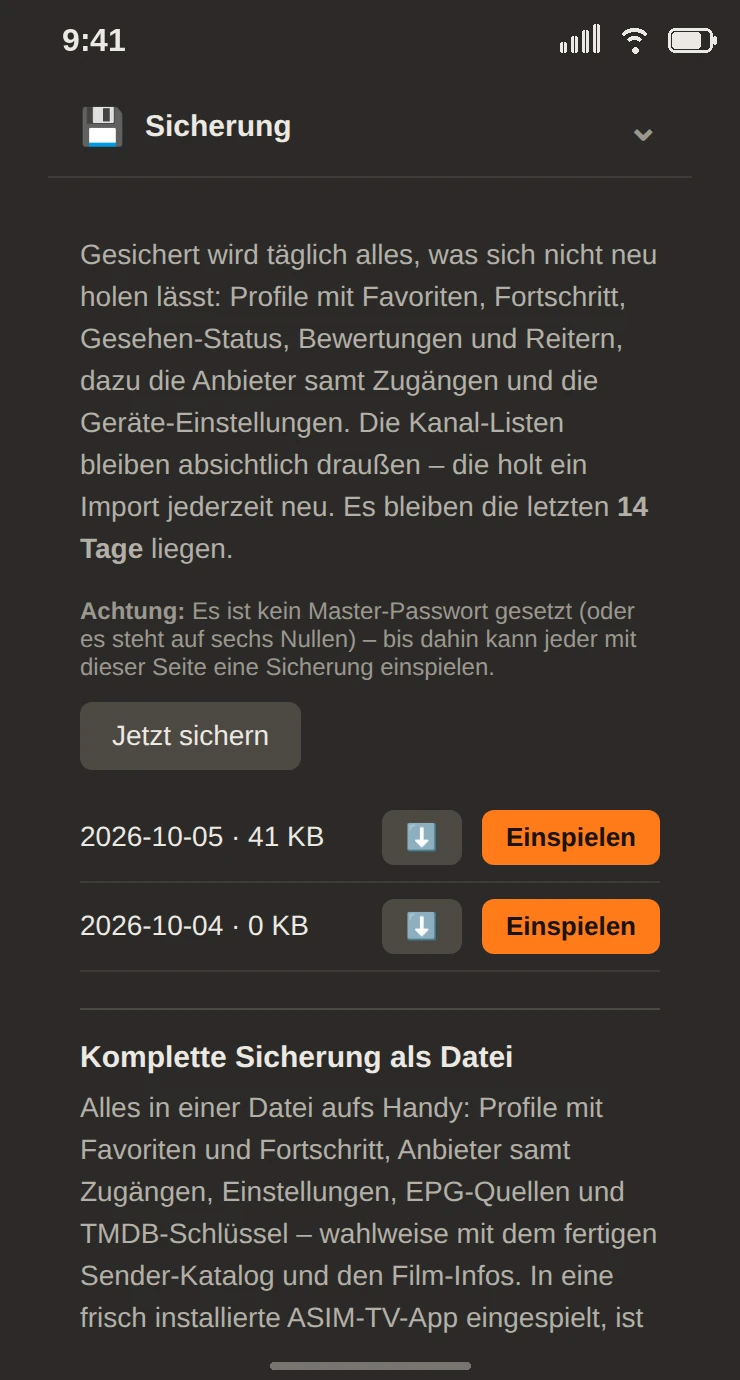
Everything important step by step – from installing to a household with several TVs. The pictures show ASIM TV as it looks on the TV and on the phone.
1 Install
ASIM TV runs on Amazon Fire TV (stick, cube and TVs with Fire OS), Google TV and Android TV. You install it with the free app Downloader and the address asim-tv.de/tv.
Install “Downloader” from the TV’s store and allow it to install apps.
Enter asim-tv.de/tv (or code 1360308) in Downloader – the app is downloaded.
Choose Install and Open.
The steps for every device with all menu items are on the download page.
2 Set up with your phone
On the first start a short wizard guides you through setup. Phone and TV must be on the same Wi-Fi.
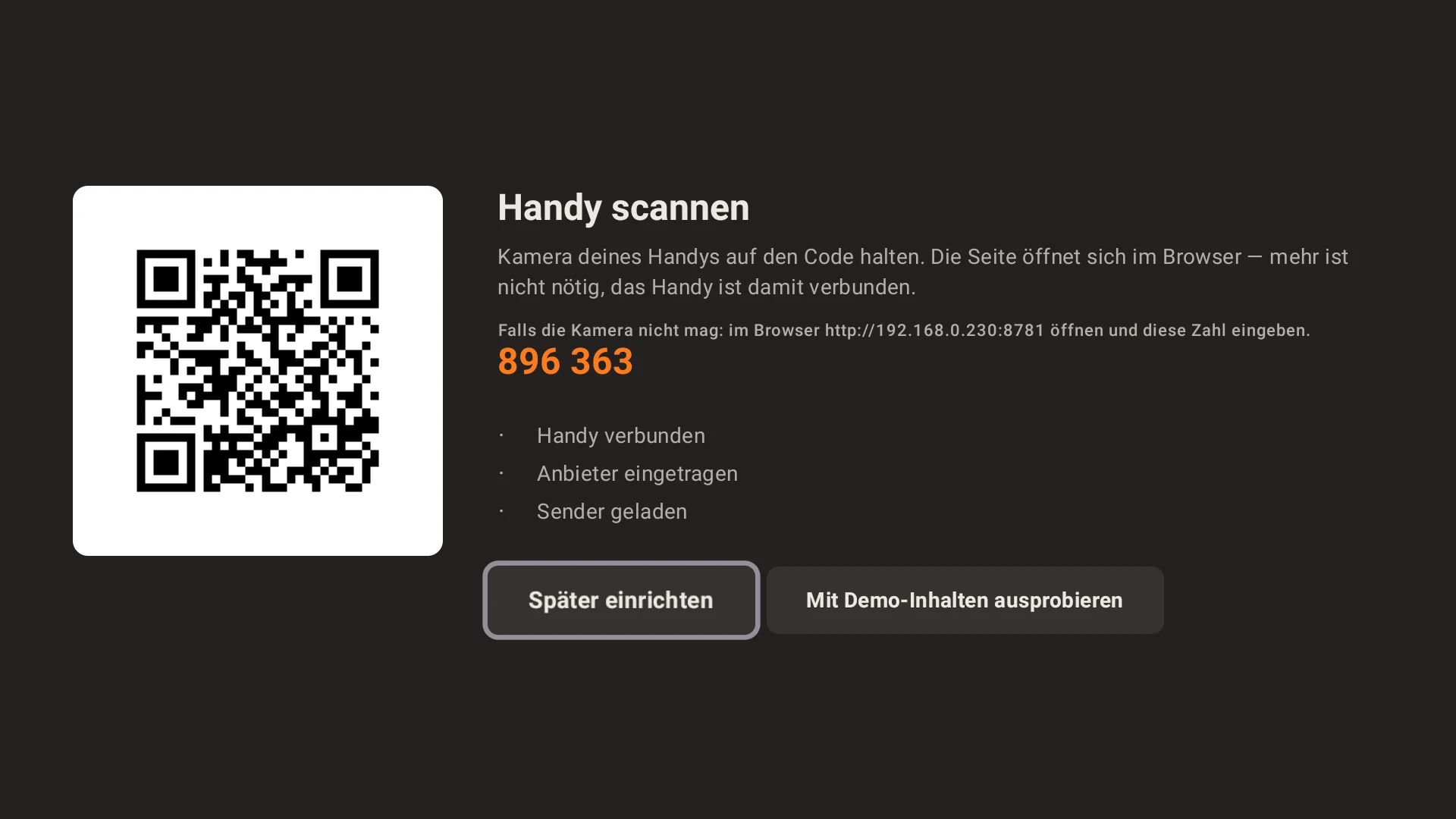
Choose Continue. The TV shows a QR code – scan it with your phone’s camera. The TV’s page opens in the browser, and the phone is connected.
If the camera does not work: open the address shown in the browser and enter the six-digit PIN.
On the phone enter your portal: the playlist address (M3U), the Xtream login (server, username, password) or the portal and MAC address of a Stalker portal – just as your provider gave them to you.
The TV loads the list itself and shows the progress. With large lists this takes a few minutes the first time; afterwards it can tell in seconds whether anything has changed.
Already have a TV with ASIM TV? Then choose Connect to main TV on the welcome screen – see step 18. If you have a backup file, use Set up from a backup – see step 22.
No portal at hand yet? Try it with demo content loads free movies by the Blender Foundation and test channels.
You can find the QR code and PIN on the TV at any time later under Settings (gear at the top right).
3 Trial and license
The first 30 days are free, without sign-up. After that ASIM TV asks for a license – your profiles, portals and settings are kept.
You buy the license at my.asim-tv.de. You get the license key by e-mail.
There are two ways to unlock:
on the phone under Extras → License enter the key, or
enter the device code shown by the TV (something like K7P-4QX) when you buy or at my.asim-tv.de/aktivieren.
The unlocked TV is your main TV. More boxes run through it – see step 21.
How long the trial still runs is shown in the window Trial & license on the TV.
4 The home page
At the top you switch between Start, Live, Movies, Series and your Favorites (heart). To the right of them: search, recordings, profile and settings.
The home page shows tabs like Continue watching, Recently watched, Newly discovered, New 2026 and Coming soon (cinema). Which tabs there are and in what order you set on the phone under Tabs – also your own, such as “Action” from certain groups.
◀▶ scrolls through the tiles. The selected title already plays as a preview; OK makes the same picture full screen.
▲ from the top row jumps to the bar at the top.
On Android TV devices (such as Sony, Philips), “Continue watching” can also appear on the TV’s home screen: on the phone under Extras → Google TV home screen pick a profile. Everyone who uses the TV can see the titles there. On the new Google TV interface Google only shows this row for apps it has checked; Fire TV has no such row.
5 Channels, movies and series
On the left are the groups, on the right the channels, movies or series of the selected group. The flag shows the country.
If a channel has several sources, it appears only once: ×3 means three quality levels or portals. OK takes the best one that is currently on air; if it fails, the next one steps in.
Very large groups get a letter bar (A–C, D–F …).
Top right: Sort (as the portal, A–Z, year, stars), list or tiles, edit and filter by country and portal. Every profile remembers the sorting, separately for movies and series.
The colored dot is the portal’s color, the small arrow with a number shows how many days it lets you rewind.
6 In the player
When you switch, you only see the picture. You bring up the controls when you need them:
◀ opens the channel list. There you also change the group with ◀▶; the channels appear as soon as you rest briefly on a group.
▶ shows the guide, for series the episodes. ▶ again or Back closes it.
▼ shows the control bar: seek, pause, audio, subtitles, picture format, favorite, timer, recording, channel list, picture-in-picture and multi-view. After three seconds without a key it closes again.
Channel +Channel − switches to the next channel of the group, for series to the next episode.
⏯⏪⏩ on the remote: pause and seek – hold to seek faster. The ☰ menu key opens and closes the channel list.
The 0–9 number keys jump to a position in the open list: “12” is the twelfth channel.
Back first closes an open window and then leaves the player.
If the connection stutters, ASIM TV reconnects by itself. Under Extras → Frame rate you set whether the TV switches to the channel’s frame rate (football at 50 frames then runs without judder).
7 Series
Episodes are combined into series and seasons; if a series exists in several languages, you pick the version at the top.
Continue watching starts exactly where you stopped. Shortly before the end of an episode the next one appears.
Watched episodes get a check mark. A long OK on a series gives stars.
While an episode is playing, ▶ shows all seasons and episodes – the running one with its progress.
You change audio track and subtitles in the control bar; the flag shows the language, the profile remembers your choice. Subtitles appear in large white lettering with a black outline – easy to read on bright and dark pictures.
8 Picture-in-picture and multi-view
Picture-in-picture
In the control bar choose ▣ and pick a second channel, movie or episode.
⇄ swaps the big and small picture – movies, episodes and recordings keep playing where they are.
With ↔↕ you move the small picture with the arrow keys, with ◲ you choose one of three sizes. The TV remembers position and size.
You switch the sound between the two pictures.
Multi-view
In the control bar choose ⊞. With + Add slot more pictures are added – as many as your TV can play at once (the app detects that itself: simple devices manage two, powerful boxes six or more) and as your connections at the portal allow.
With the arrows you select a window; the sound is there. OK opens its menu: Open, Remove, Swap, Save.
Every window has the same channel list and the same guide as the big picture.
Remember layout puts the arrangement under Favorites in the folder Multi-channel – later it opens again with one click.
9 Guide, timers, rewind
In the player ▶ shows the channel’s guide for the next 24 hours. If nothing is on according to the schedule, it says “Next”.
The program guide shows all channels of a group as a grid: channels one below the other, time running to the right. Open it with the calendar icon at the top, the guide key on the remote, or from the control bar in the player. ◀▶ at the top switches the group; OK on a show opens the menu: watch, set a switch timer, remind me, record.
Scrolling up shows past shows. The small arrow in front means: your portal has them in the archive (via Xtream or for M3U lists with catch-up details) – OK plays them.
Pick an upcoming show: the switch timer is already set to its start time. Shortly before, a notice with a countdown appears; you can cancel any time.
A long OK on an upcoming show schedules it for recording.
You set a timer without a guide in the control bar with ⏰.
The guide comes from your portal. If it is missing, you enter free guide sources for each country on the phone under Extras → Guide sources.
10 Record
In the control bar choose ⏺.
If a show is running, the recording starts right away; the end comes from the guide. With ◀▶ you move it – for example for an overrun. Without a guide two hours are suggested. A recording lasts four hours at most in one go.
Record now – done. You can keep switching channels meanwhile.
Schedule: in the guide a long OK on an upcoming show. The TV must be switched on at the start time.
Where to: on the phone under Extras → Recording – to the device, a USB stick or a network drive. There you also set how many recordings may run at once.
If you have several accounts with the portal, the recording takes its own – the picture keeps playing undisturbed.
Finished recordings are under Favorites in the folder Recordings or via the recording button at the top. OK plays, a long OK deletes.
11 Search
The magnifier at the top searches channels, groups, movies, series and the guide at the same time.
Special characters do not matter: “guldur” finds “Güldür”, “madchen” finds “Mädchen”.
The search also looks into descriptions: of shows in the guide and – for movies and series – the stored texts from TMDB and TVmaze. Results are separated by where they were found.
Above the results there are chips: the top row shows where something was found (names, guide, TMDB, TVmaze), the row below what it is (channels, movies, series). Reach them with ▲ from the list; only chips with results behind them appear.
In the program guide the Search button (reached from the group selector with ▲) looks for shows – in the title and in the description. Picking a show opens its menu; a movie or series starts playing.
Episodes of the same series appear as one result; shows from the guide are in a section of their own.
Submit with Search on the on-screen keyboard – after a short pause it also searches by itself.
12 Favorites
In the player ★ in the control bar: put the channel, movie or series into a favorites list – or create a new one.
Under the heart at the top are all lists, plus the folders Recordings, Multi-channel (saved multi-views) and the titles that keep failing to start.
In a list you rename it or remove entries.
13 The phone pages
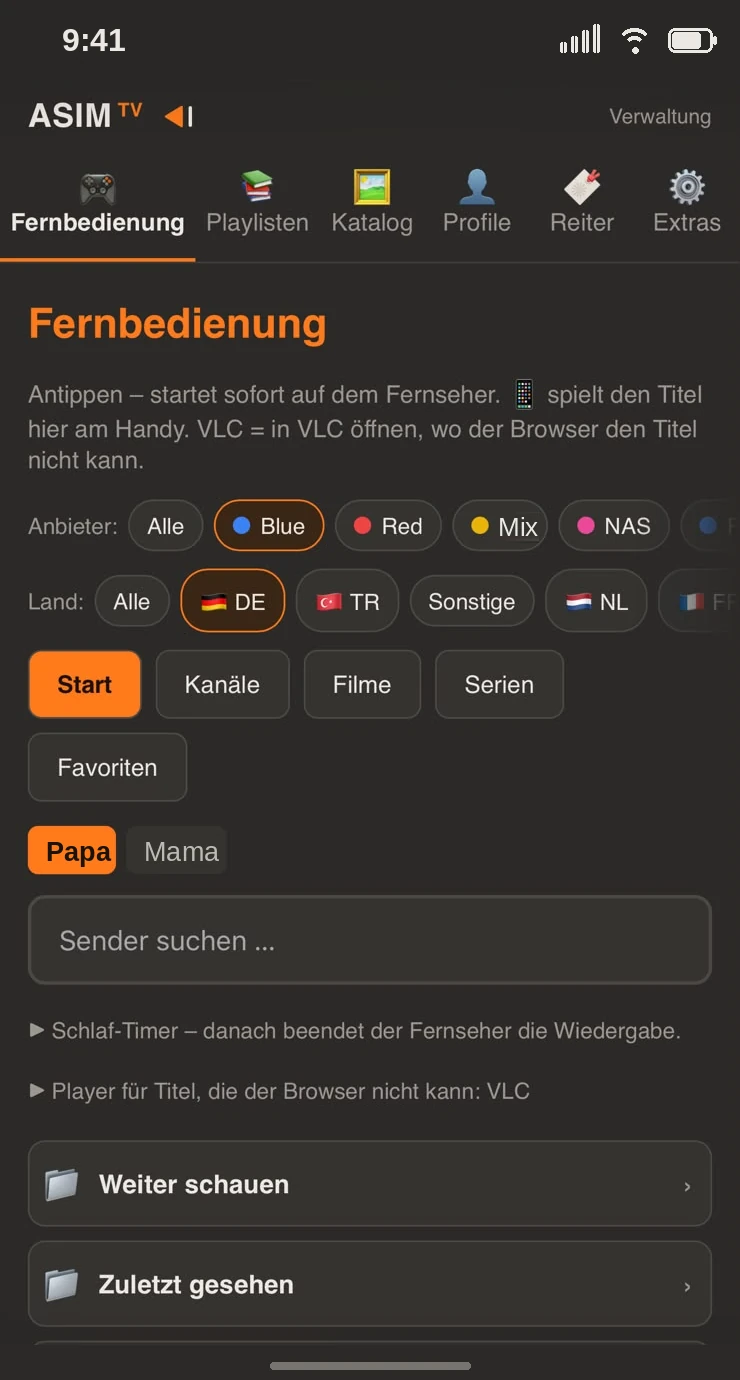
The connected phone opens the TV’s pages in the browser – no app of its own is needed, and they appear in your phone’s language. At the top are six areas:
Extras – guide sources, movie info, devices in the house, recording, backup, license and more
If an area can only be changed on the main TV, the page says so.
14 Remote and “Watch here”
At the top you choose the profile – watched marks and favorites depend on it. The phone remembers your choice.
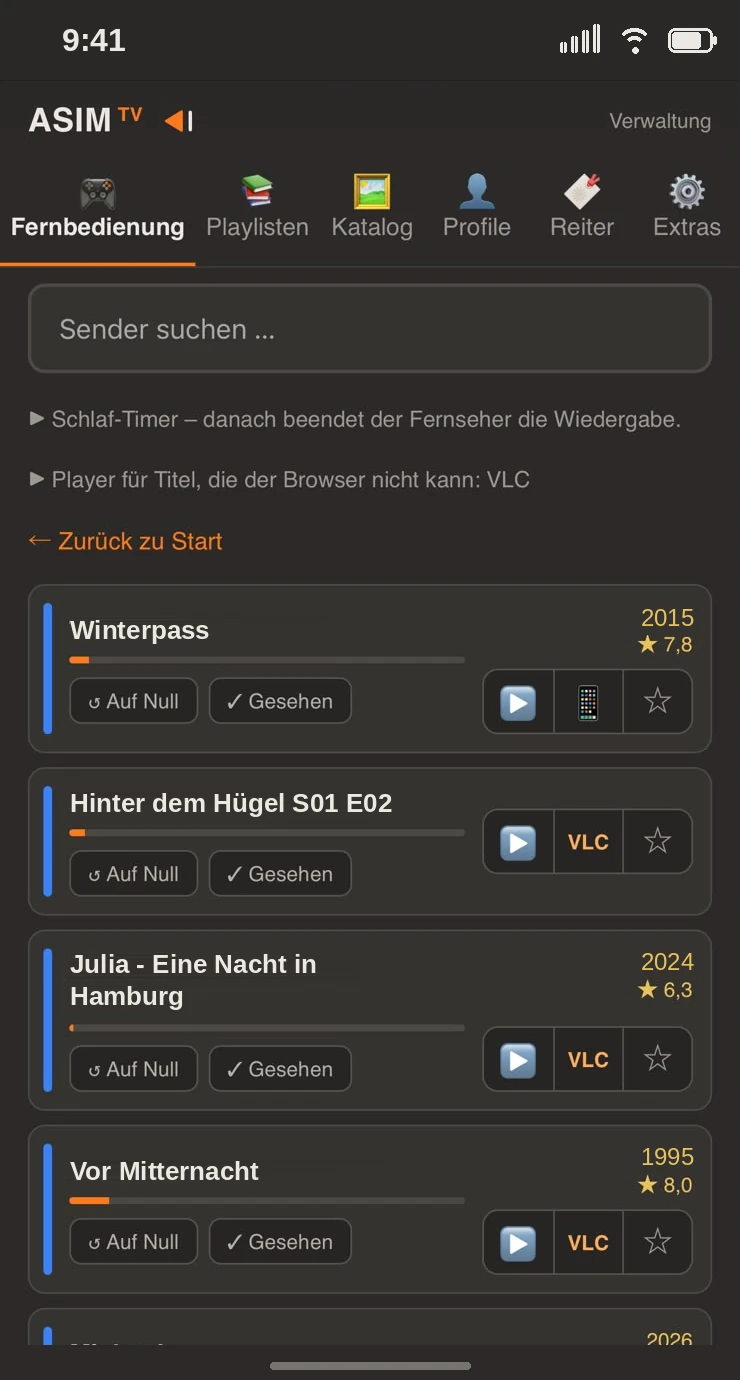
Start, channels, movies, series and favorites like on the TV, with posters, year and stars. Series open with seasons and language versions.
Search with filters by portal and country; sort movies and series as on the TV.
▶ next to a title starts it on the TV.
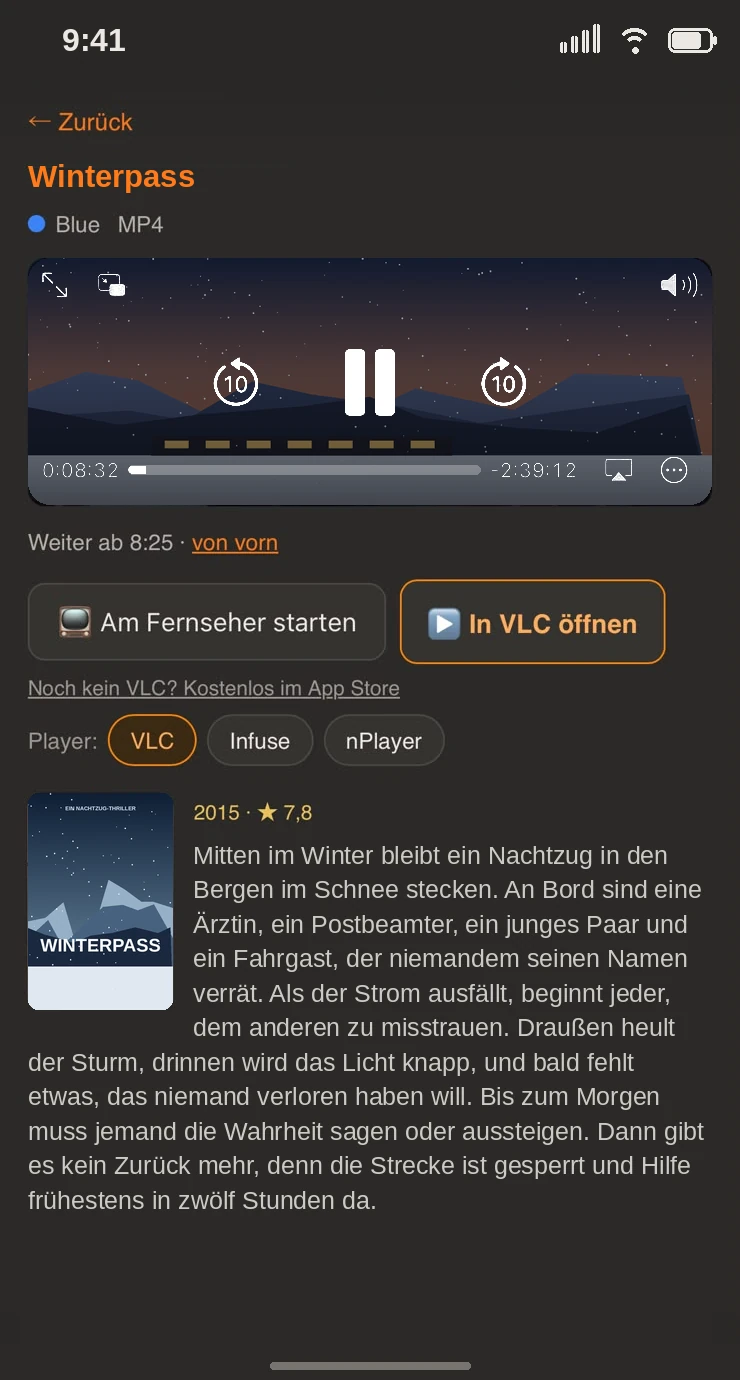
The phone symbol next to it plays it in the phone’s browser (“Watch here”). What the browser cannot do (some movie formats, audio) you open with one tap in VLC or another player – which one you set on the page.
The star puts the title into a favorites list. On the same page you also set the TV’s sleep timer.
“Watch here” only works on your own Wi-Fi. The picture comes straight from your portal to the phone – so it uses one connection of your account.
15 Tidy up the channel list
Under Catalog you put your list in order. Everything survives every update of the list.
Groups
At the top choose the portal and the section (Live, movies, series).
Tick groups and choose an action in the selection box: Block import, Hide, Assign country … or Merge (first one stays). The selection box remembers the action you chose last.
When merging, the page suggests the name of the first group – you can change it right away.
Apply. You rename with the pencil on the group.
Connect channels as alternatives
Open a group and tick the channels that are the same (for example “DE: Bundesliga 1” from two lists).
Set as alternative and Apply. The page asks for a shared name – the first one without the country in front is suggested.
Rename later: the pencil ✎ next to the name of the bundle.
ASIM TV connects many channels by itself – even if they are called “Sat.1”, “SAT 1” or “Sat1 HD” or write their country differently (DE:, DE |, [DE]).
16 Portals and accounts
Under Playlists you add portals, update them, pause them or delete them. With ▲ ▼ you set the order – it counts when the same channel runs at several portals.
If you have several accounts with the same portal, enter the address of each further account, one per line, under More logins. The list is loaded only once, every account counts as a line of its own.
Per portal: its own guide address, a color and – if your portal requires it – its own identifier (user agent).
You also add a USB library or a network drive (SMB) here – their movies and series appear like a playlist.
If your provider gives you a portal address and a MAC address instead of a list (as for a MAG box), add it under Playlists with Add a Stalker portal (MAC address). For now the live channels come in.
New login details at the same portal, for example after a renewal: in the playlist just change username and password and save (Xtream login, same server). Channels, sorting, blocks and favorites stay; nothing is reloaded.
If an update suddenly brings a much shorter list – cut off or because the subscription has expired – ASIM TV keeps the previous catalog and shows why. So a hiccup at the portal doesn’t wipe out your order.
17 Profiles and blocks
Under Profiles you create profiles: name, photo or avatar, and if you like a PIN.
Per profile: language (14 to choose from, from German and Turkish to Kurmanji), design and which portals, groups and channels it sees. What a profile may not see, it does not find in the search either.
Every profile has its own favorites, history and tabs.
The master password protects the management area on the TV and the download of backups. On the TV you also use it to open blocked items for the running session.
18 Connect more boxes
Another box takes over everything from the main TV – profiles, portals, the finished channel catalog and the movie info – and then runs on its license. Both must be on the same Wi-Fi, and ASIM TV must be running on the main TV.
Install and open ASIM TV on the new box.
On the welcome screen choose Connect to main TV. The box looks for it on the home network.
Select the main TV and enter its six-digit PIN. It is on the main TV under Settings next to the QR code and on its phone page under Extras → Devices in the house.
Wait until everything is transferred, then Let’s go.
Important: the main TV’s PIN is not the master password and not the PIN of a profile. Every pairing PIN applies to one device – afterwards the TV shows a new one.
A new profile on the main TV also shows up on the boxes by itself.
You manage portals, blocks and guide sources on the main TV – the boxes pick them up by themselves.
For small boxes with little storage, the box’s phone page has the Saving switches for small boxes under Extras → Storage: series and single countries (Countries on this box) can be deselected. If you open such a group anyway, the box fetches it from the main TV – which must be reachable then.
19 Continue here
If your profile is still running on another box, ASIM TV shows a notice after you sign in.
Continue here takes over channel, movie or episode – a few seconds before the spot where you were over there. Over there the picture stops.
If you like, the other box goes to sleep; a stick also switches off the TV behind it via HDMI.
For a box to be allowed to go to sleep, you have to allow it once: on the phone under Extras → Switch off. On some devices (Fire TV, Android TV sets) there is no window for this – then it is done once from a computer, and the page shows how. You can withdraw the permission there at any time.
20 Accounts across the house
An IPTV account only allows a certain number of simultaneous connections. ASIM TV distributes all accounts across all boxes – none belongs to one device for good.
Whoever switches on takes a free account. Whoever is already watching is never pushed out; when a box goes off, its account is free at once.
If everything at the portal is taken, ASIM TV looks for the same channel at your other portals – in the order under Playlists.
Picture-in-picture, multi-view, previews and recordings also take a free account.
The colored dot in the picture shows with its number which account it runs on. On the phone under Extras → Other boxes & logins you see which box is using which.
If a box should prefer a certain account, you set its home line there.
21 The household license
One license unlocks one device: your main TV.
Up to four more boxes that are connected to it run on its license. They fetch their approval at start and in between by themselves – you do not have to enter anything.
An approval is valid for seven days. So if the main TV is off for a while, the boxes keep running.
Take it along: a box may run up to six months without the main TV. This happens by itself as soon as its approval expires; back home the spot is free again.
If a box is replaced, free its seat: in your customer account or on the main TV’s phone page under Extras → License with Free the seat.
More than five devices: add a second license.
Without internet the last verified state is valid for seven days.
22 Backup and moving
Backup as a file
On the phone open Extras → Backup and enter the master password – without it the download does not work.
Choose whether the finished channel catalog and the movie info should come along. With them the file is bigger, but the new box does not have to reload anything.
Download – the file ends up on the phone.
Import
New box: on the welcome screen connect the phone and choose Set up from a backup.
Existing box: import the file under Extras → Backup. The app restarts afterwards.
The license belongs to the device and does not come along.
Take a profile along
Under Extras → Backup you can also download a single profile as a file – optionally with its portals and movie info – and add it on another box without touching anything else there.
In addition ASIM TV backs up by itself every day on the device: profiles with favorites and progress, portals and settings.
23 Connected phones and boxes
On the phone under Extras → Connected phones and boxes you see every device that may control the TV – with the date of connection and when it was last there.
Sign out takes away a phone’s access. Sign out all other phones does that for all except your own – afterwards the TV shows a new PIN.
Boxes are only shown there for viewing; they are disconnected under Other boxes & logins.
24 More settings
On the phone under Extras:
Movie info – posters, descriptions, year and rating. For series it works without a key; for movies you enter a free TMDB key.
Guide sources – free guide sources for each country, for channels without a guide from the portal.
Theme – the design (nine to choose from), Preview, Frame rate, Lists & sorting (for example how long the channel list waits on a group).
Quality order – which quality is preferred (for example 4K before HD) and whether rewinding via other qualities is allowed.
Recording – target and how many recordings at once.
On the TV under Settings (gear): QR code and PIN for the phone, your portals and under Licenses the notices on the free software ASIM TV uses.
25 Updates
ASIM TV announces new versions itself and installs them on your request. The first time, the TV asks whether ASIM TV may install apps – confirm with Allow.
To check yourself: on the TV in the window Trial & license → Check for updates.